Restaurants grow direct orders by running five kinds of campaigns: printed flyers, direct mail, smart coupons, SMS, and tracking page ads. With Shipday Marketing, you can create, launch, and measure all five from the same account you use to dispatch your deliveries.
Here's the problem most restaurants face. Marketplaces like DoorDash and Uber Eats are great at putting your food in front of new people. But every repeat order that flows through them costs you a commission, and the customer relationship stays with the marketplace. You don't get their phone number, you can't send them an offer, and you can't invite them back.
The fix is simple: let marketplaces handle discovery, then move repeat orders to your own website. Direct orders mean no commission, better margins, and customer data you own. This guide walks through each campaign type, what it's best for, and how to set it up inside Shipday.
Where to find Shipday Marketing
Everything in this guide lives under the Marketing tab in your Shipday dashboard. It's available on higher Shipday plans and includes:
- Flyer printing for counter cards and bag inserts
- Tracking page promotions
- Coupon codes you can reuse across campaigns
- My designs, where your saved flyer and postcard designs live
- Direct mail postcard campaigns
- SMS campaigns
- Audiences, for grouping customers by behavior
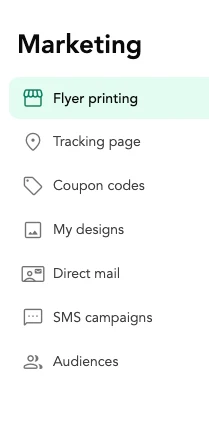
Because marketing sits next to your orders and deliveries, you don't need a separate tool, a separate login, or a spreadsheet of customer data to get started.
1. Printed flyers: turn marketplace customers into direct customers
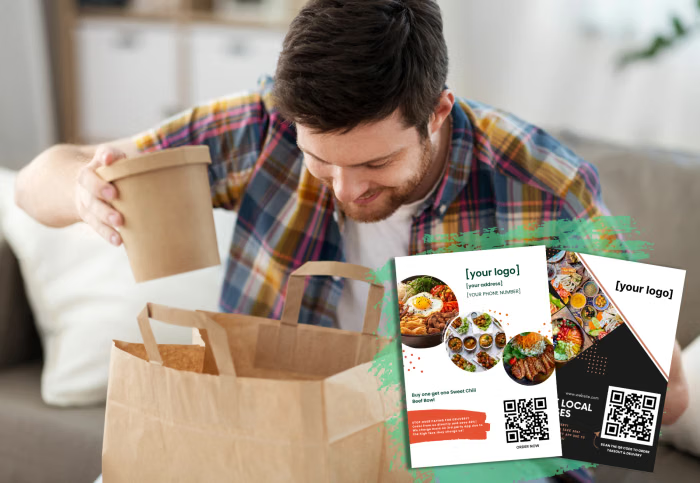
Printed flyers and bag inserts are the easiest way to move a marketplace customer to your own website. Every DoorDash or Uber Eats order that leaves your kitchen is a chance to put an offer in the customer's hands.
Think about who receives that bag. They already know your food and they already like it enough to order. A flyer with a clear reason to order direct, like "Order direct from our website and save up to 20%," gives them a simple, safe next step. They pay less, you skip the commission, and the order is still prepared by the same kitchen they trust.
This is the key mindset shift: repeat orders don't have to come from marketplaces. Marketplaces are a great place to introduce your restaurant to new customers. Once someone has tried you, your website should be where they come back.
How to order flyers in Shipday
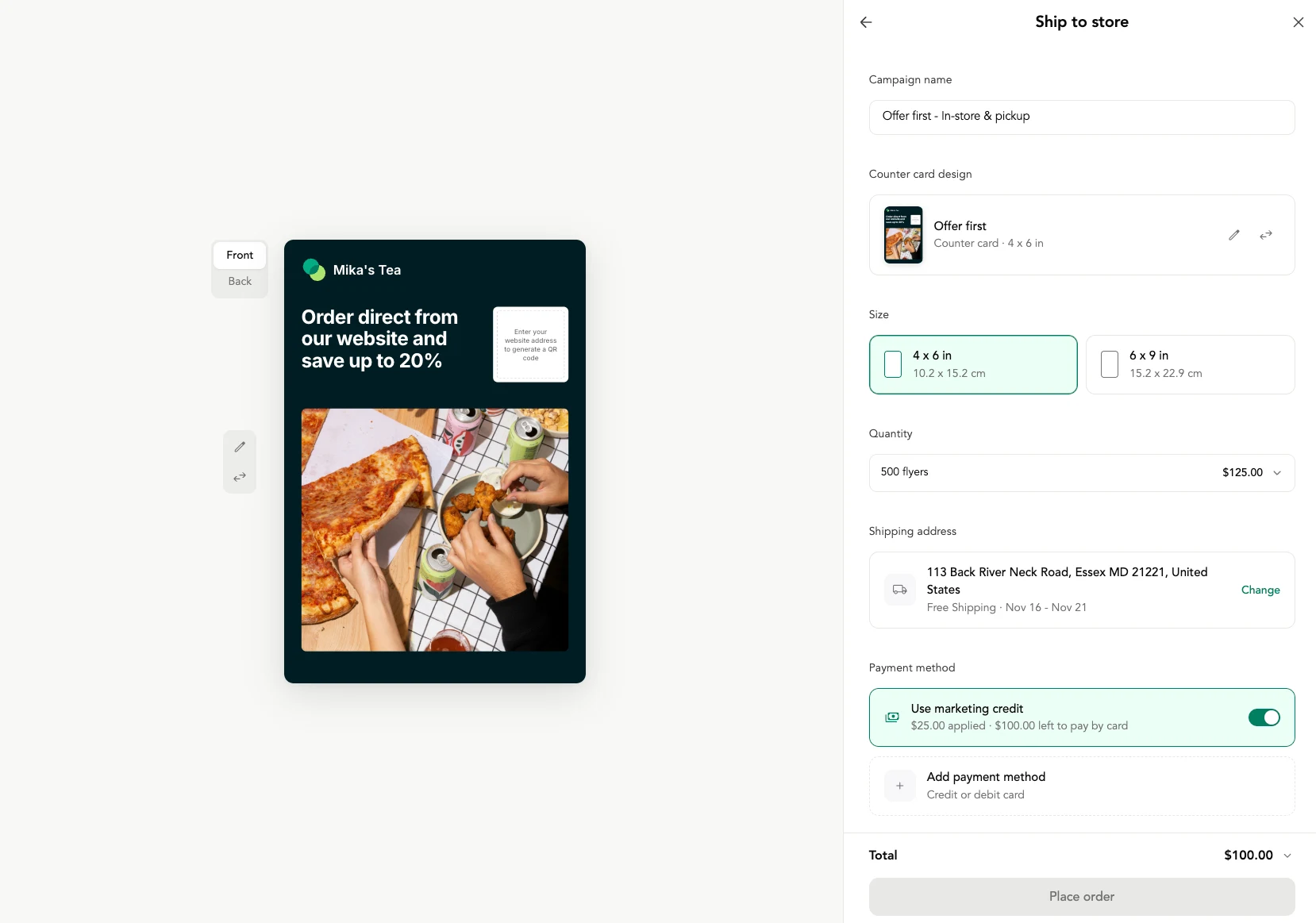
- Go to Marketing > Flyer printing and start a Ship to store campaign.
- Pick a counter card design (for example, an "Offer first" template) and edit the headline, photo, and offer.
- Add your website address and Shipday generates a QR code that sends customers straight to your ordering page.
- Choose a size: 4 x 6 in or 6 x 9 in.
- Select a quantity. For example, 500 flyers at 4 x 6 in cost $125.
- Confirm your shipping address. Shipping is free and the flyers arrive at your store, ready to drop into bags or set on the counter.
- Apply any marketing credit you have, then place your order.
Tip: Pair every flyer with a coupon code (see Smart coupons and audiences below) so you can see exactly how many marketplace customers made the switch.
2. Direct mail: reach new customers in the neighborhoods around you
Direct mail puts a postcard in every mailbox in the areas you choose, with no customer list required. It's the best way to reach people near your store who have never ordered from you, and Shipday shows you how many new customers each campaign brings in.
How it works
- Go to Marketing > Direct mail and open Print to neighborhoods.
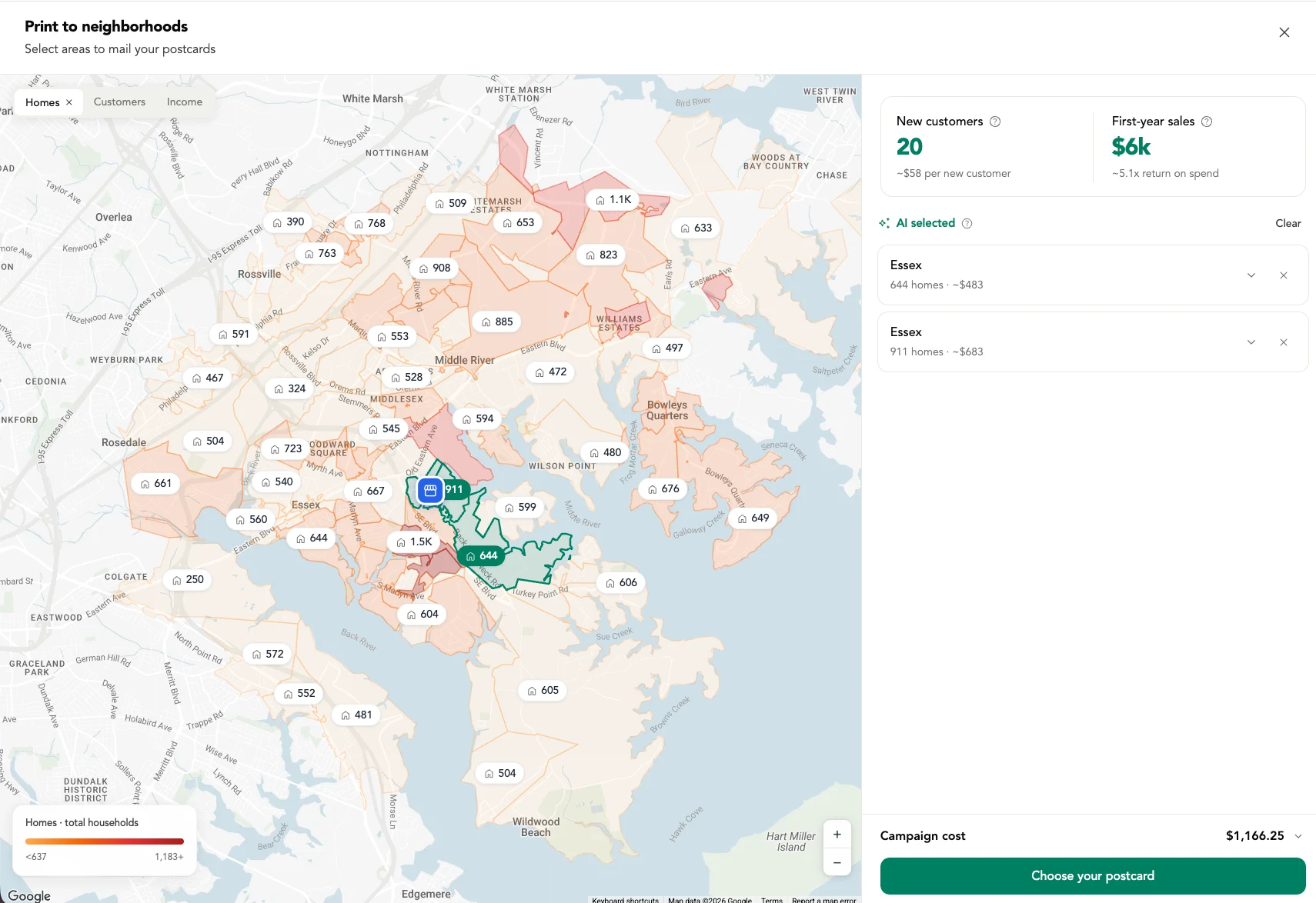
- Pick your areas on the map. Each zone shows its number of homes, and you can switch the map view between Homes, Customers, and Income to find the right fit. Shipday can also suggest zones for you with AI selected areas.
- Review the forecast. Before you spend anything, Shipday estimates new customers, cost per new customer, and first-year sales.
- Choose your postcard design from your saved designs or a template, then edit it.
- Name the campaign, apply marketing credit if you have it, and place the order.
What a campaign looks like
Here's an example for a restaurant in Essex, Maryland, using two AI-selected zones:
| Zone | Homes | Estimated cost |
|---|---|---|
| Essex zone 1 | 911 | ~$683 |
| Essex zone 2 | 644 | ~$483 |
| Total | 1,555 | $1,166.25 |
Shipday forecasts about 20 new customers from this campaign, roughly $58 per new customer, and around $6k in first-year sales. That's an estimated 5.1x return on spend.
Make the postcard do double duty
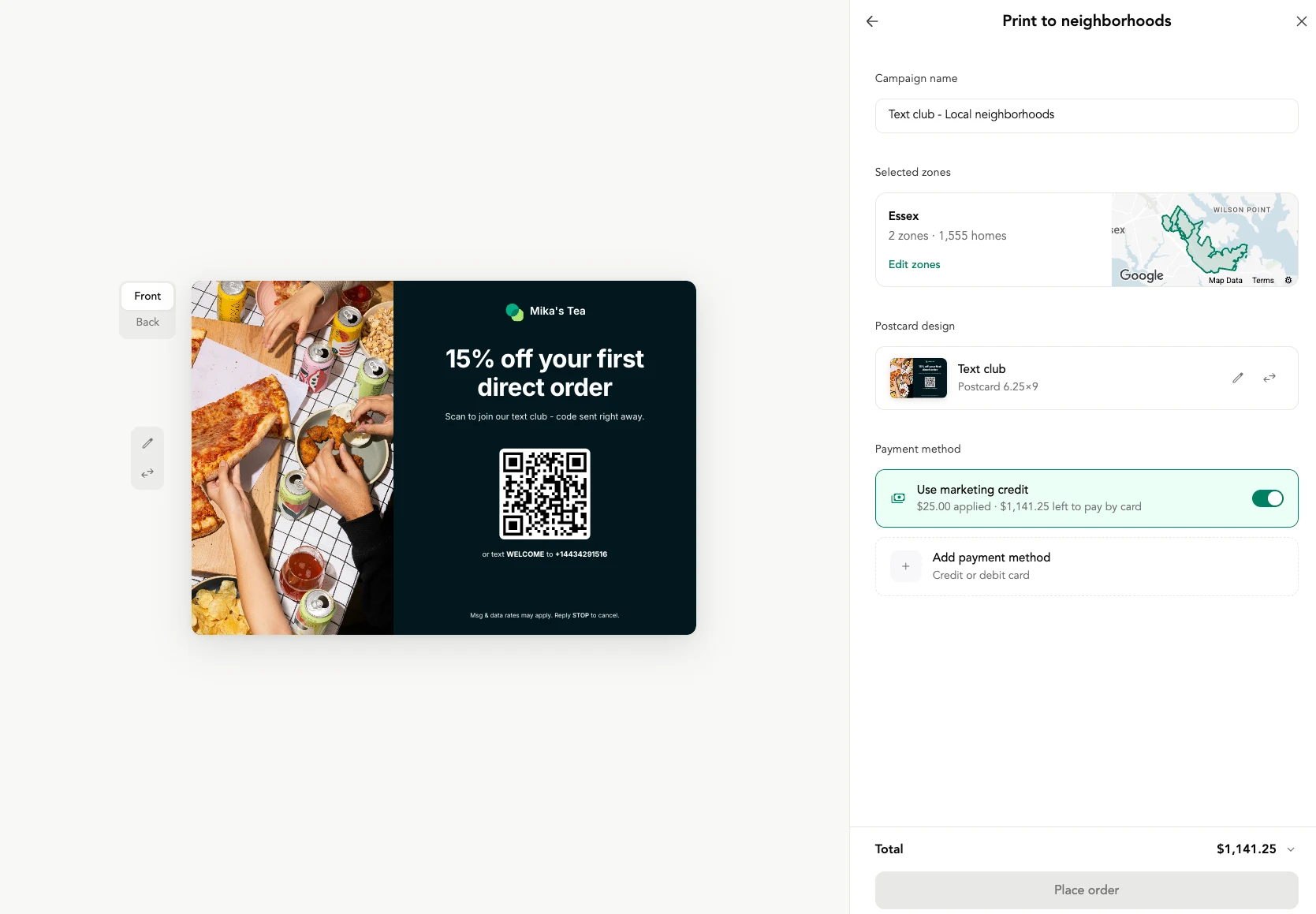
The strongest postcards give a reason to act now and capture the customer for later. A "Text club" postcard, for example, offers "15% off your first direct order" and asks people to scan a QR code (or text a keyword) to join your SMS list. The code arrives right away, and you now have a customer you can reach again with SMS campaigns.
3. Smart coupons and audiences: the right offer for the right group
Smart coupons let you send a different offer to each customer group instead of one discount for everyone. A first-timer needs a nudge to try ordering direct. A regular who hasn't ordered in 60 days needs a reason to come back. A VIP deserves a thank-you.
Common audiences to target:
- First-timers: new customers who found you through a flyer, postcard, or marketplace
- Win-backs: customers who used to order often but have gone quiet
- VIPs: your most frequent or highest-spending customers
- Marketplace switchers: people you're inviting to move from DoorDash or Uber Eats to your website
How to create a coupon code
- Go to Marketing > Coupon codes and click Add new code.
- Enter the code (for example, SUMMER20 or SAVE15).
- Add a short description, like "20% off summer orders."
- Set an expiry date, or leave it open-ended.
- Click Add code. A live preview shows how the coupon will look to customers.
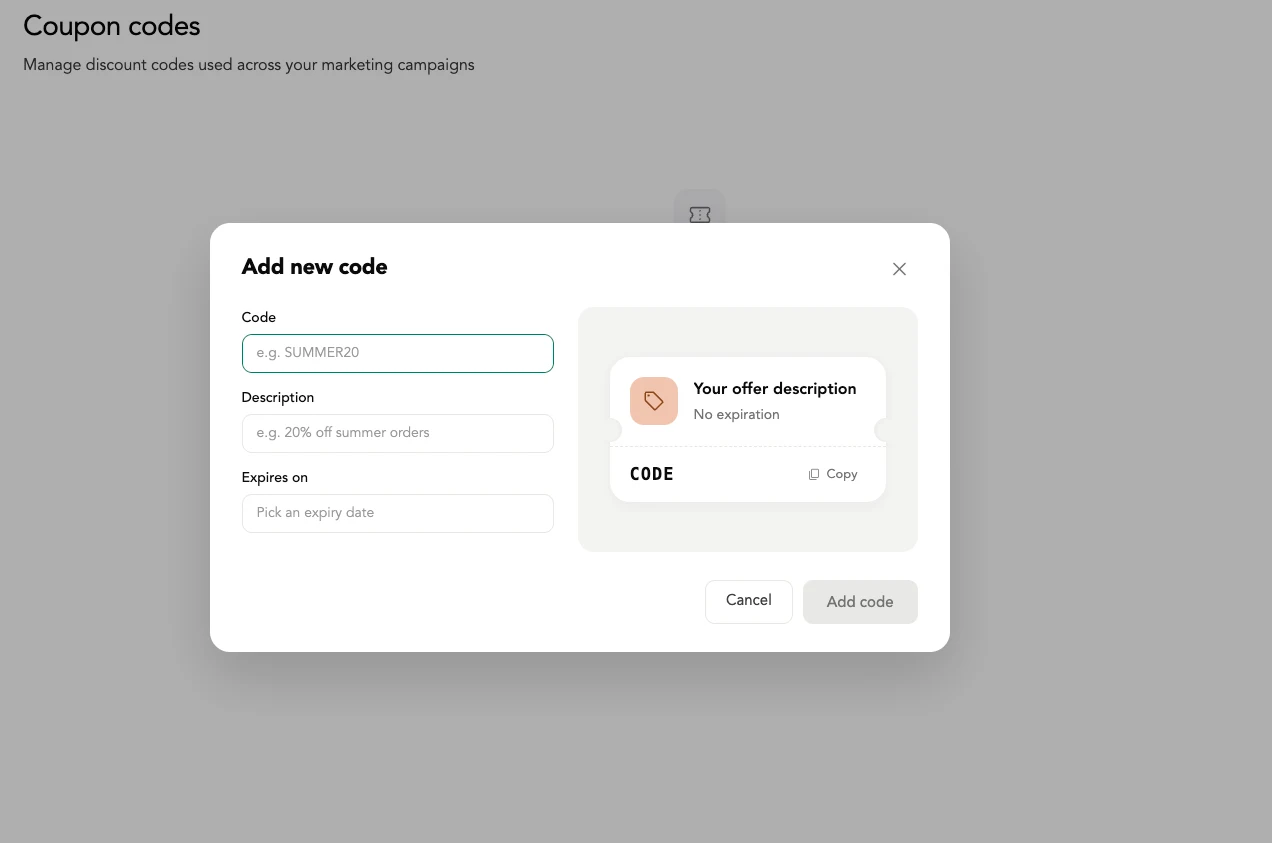
Once created, the code can be used across your marketing campaigns: printed on flyers and postcards, sent by SMS, or featured on your tracking page. Using a unique code per campaign also makes it easy to see which channel drove each order.
4. SMS campaigns: text offers to customers in minutes
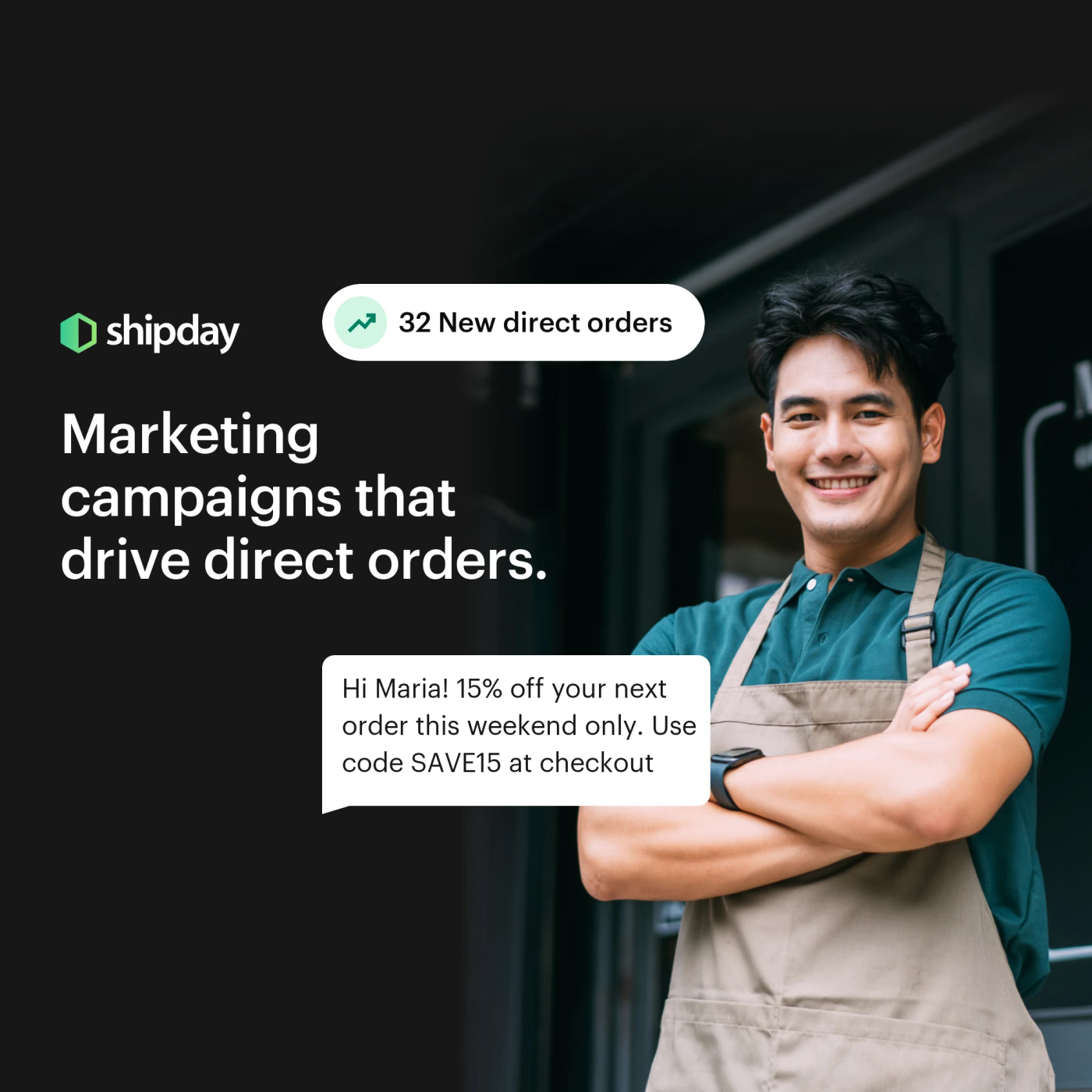
SMS campaigns let you text offers, menu updates, and events straight to customers who have given you permission to contact them. Texts get read fast, which makes them ideal for time-sensitive offers like "15% off your next order this weekend only. Use code SAVE15 at checkout."
To build an SMS campaign in Shipday:
- Go to Marketing > SMS campaigns.
- Choose who to send to: all opted-in customers or a specific audience, like win-backs or VIPs.
- Write a short message with one clear offer and, ideally, a coupon code.
- Send now or schedule it for your slowest days.
Only text customers who have opted in and whose phone numbers you've collected with permission. The "Text club" postcard and the "Subscribe for exclusive offers" button on your tracking page are two easy ways to grow that list.
5. Tracking page ads: turn every delivery into an ad
Tracking page ads turn every tracking page view into a promotion for your next offer. While customers wait for their food, they check the tracking page again and again to see where the driver is. That's prime attention, and Shipday lets you place a promotion card right at the bottom of the page, above a Subscribe for exclusive offers button.
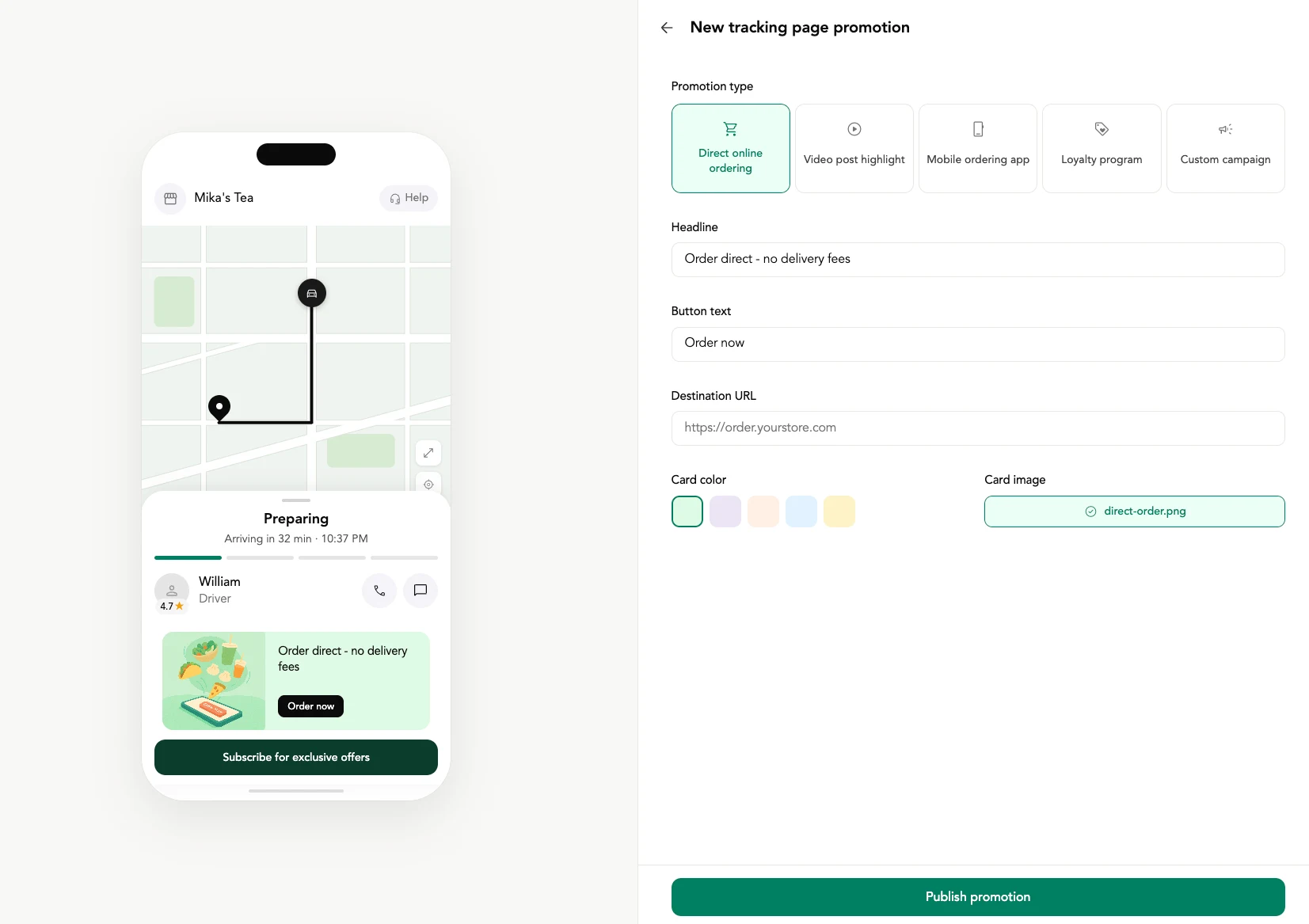
You can choose from five promotion types:
| Promotion type | What it does | What you add |
|---|---|---|
| Direct online ordering | Sends customers to your website for their next order (for example, "Order direct - no delivery fees") | Headline, button text, destination URL, card color, image |
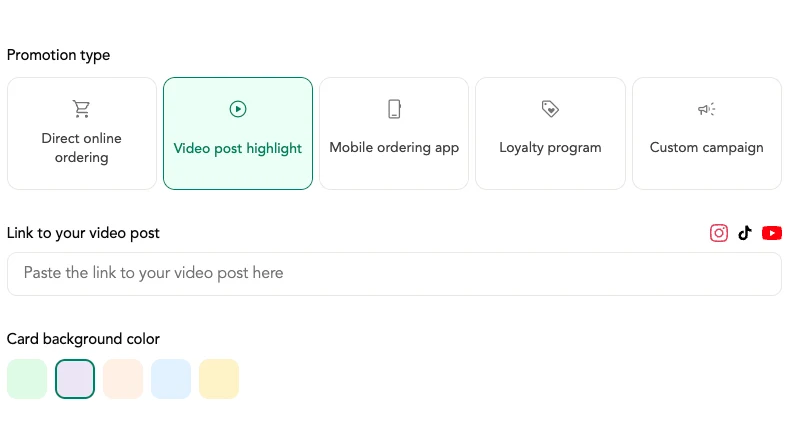
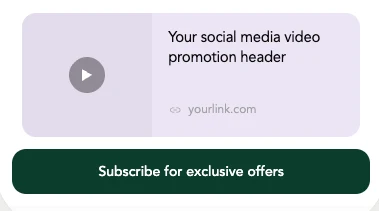
| Video post highlight | Features one of your Instagram, TikTok, or YouTube videos | Link to the video post, card background color |
| Mobile ordering app | Drives downloads of your ordering app (for example, "Get our app - order faster, earn more") | Headline, button text, App Store and Google Play links, card color, image |
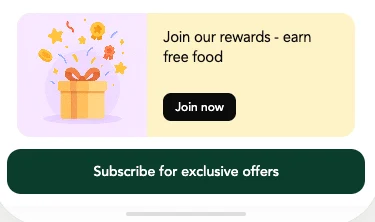
| Loyalty program | Invites customers to join your rewards (for example, "Join our rewards - earn free food") | Headline, button text, link, card color, image |
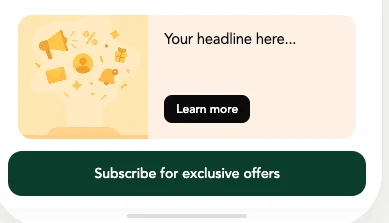
| Custom campaign | Promotes anything else: a new menu item, an event, a seasonal drop | Your own headline, button text, and link |
Here's how the other promotion types look when you set them up and on the tracking page.
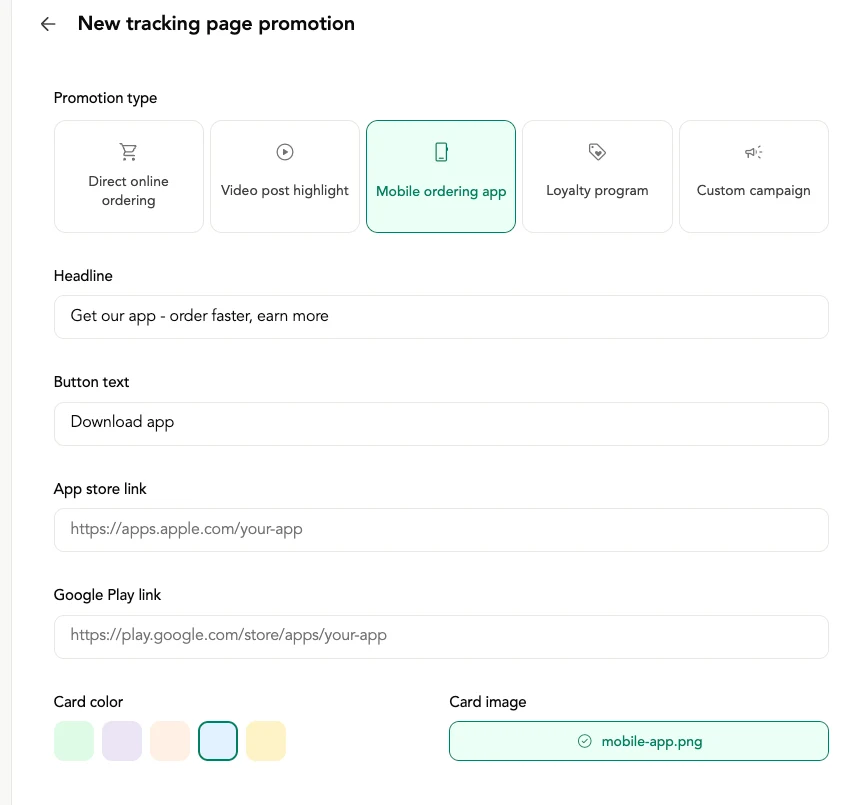
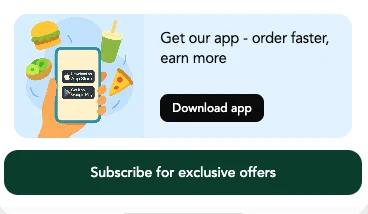
How to publish a tracking page promotion
- Go to Marketing > Tracking page and create a New tracking page promotion.
- Pick a promotion type.
- Fill in the headline, button text, and destination link.
- Choose a card color and image. The live phone preview shows exactly what customers will see.
- Click Publish promotion.
Tracking page ads reach customers at the exact moment they're happiest with you: right before the food arrives.
Putting it together: a simple direct-order playbook
Each campaign works on its own, but they're strongest as a loop that finds new customers, converts them to direct, and keeps them coming back.
| Goal | Campaign | Example |
|---|---|---|
| Reach new customers nearby | Direct mail | Postcards to 1,500 homes near your store with a first-order offer |
| Move marketplace customers to direct | Printed flyers | Bag inserts in every DoorDash and Uber Eats order with a QR code to your website |
| Build a list you own | SMS sign-ups | "Text club" postcard and tracking page subscribe button |
| Bring regulars back | Smart coupons + SMS | Win-back code texted to customers who haven't ordered in 60 days |
| Make every delivery count | Tracking page ads | Promote your app, loyalty program, or direct ordering while customers wait |
Start with one or two campaigns, give each its own coupon code, and watch which one brings in the most direct orders. Then put more budget behind what works.
Bring repeat orders to your own website
Marketing is available on higher Shipday plans. Start free, then upgrade when you're ready to run flyers, direct mail, coupons, SMS, and tracking page promotions from the account you already dispatch from.

I am writing about content marketing, marketing trends, restaurant technology, tips on restaurant management and more.