
Deliveroo integration with Shipday
Link each of your Deliveroo sites to Shipday with a Site Location ID: you create it in Shipday, then enter it in Deliveroo.
-
You need a Shipday account, access to your Deliveroo Partner Hub, and permission to manage integrations for the Deliveroo sites you want to connect. Have your store name, phone number, email and address ready. Create your free Shipday account here (if you don’t have one)
-
Log in at dispatch.shipday.com, go to the
Integrationstab, search forDeliverooand clickConnect.
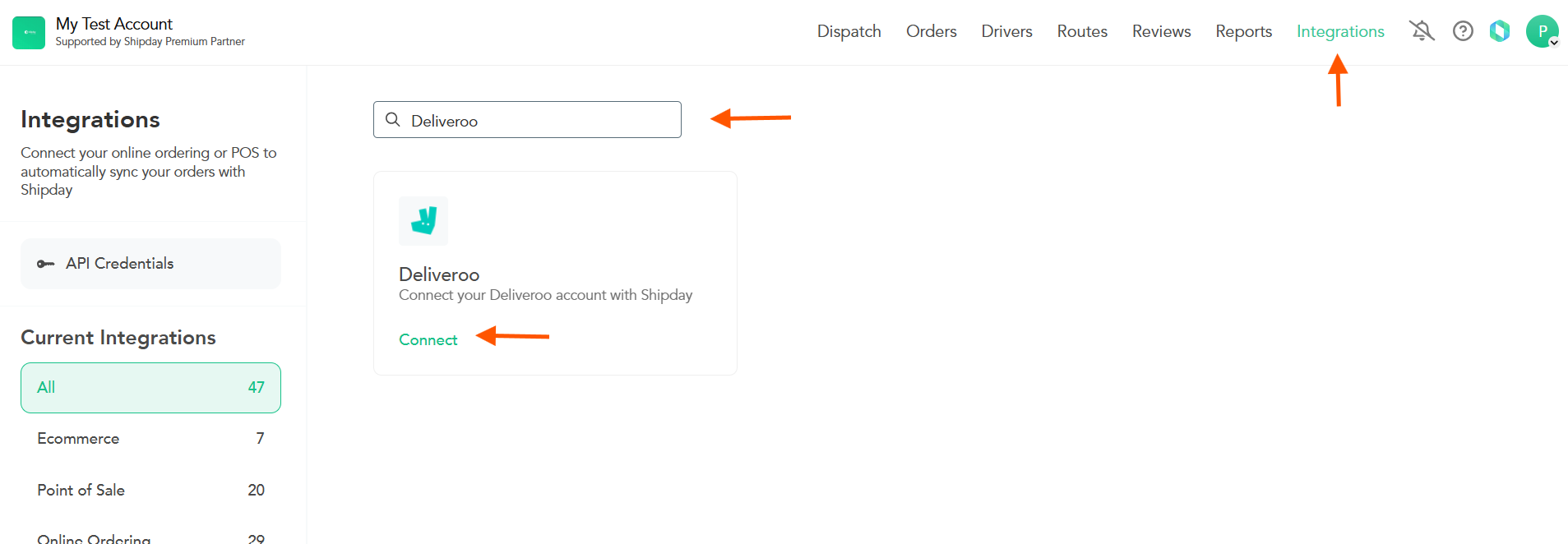
- Click
Connect, enter the store name, phone number, email and address, then selectAdd Store.
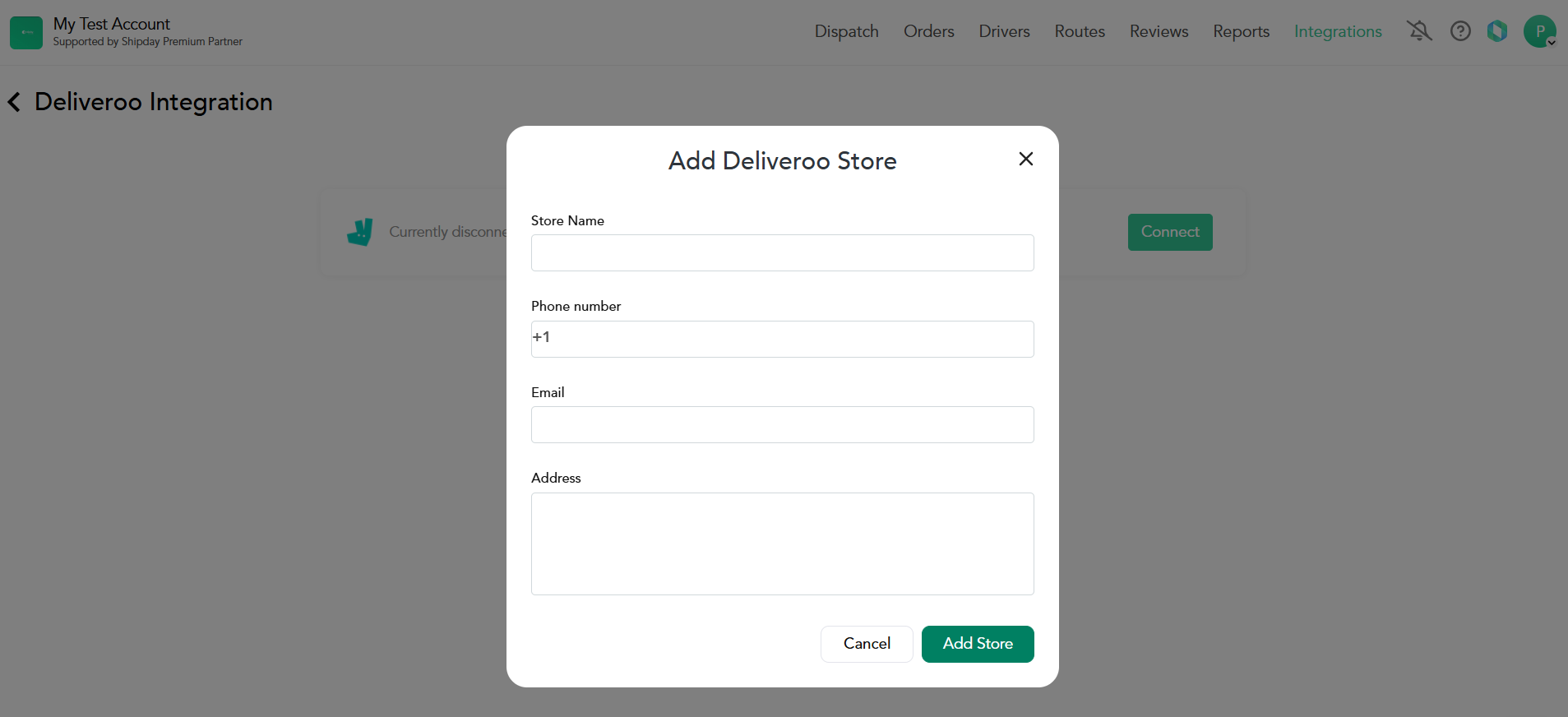
-
After you add the store, Shipday displays its Site Location ID. Copy this ID; you will enter it in Deliveroo to link the matching location.
-
Log in to Deliveroo Partner Hub, open
Integrationsand search forShipday. Select the site you want to connect, then paste the Site Location ID for that store from Shipday. If you are connecting multiple sites, use each store’s corresponding ID. -
When asked how you want to manage menus, select
No - I want to keep updating my menus online. Continue managing your menu in Deliveroo, as Shipday does not manage it. Follow the remaining prompts to complete the connection. -
Place a test order for the connected site and confirm it arrives in the correct Shipday account. For multiple sites, check that each uses the matching Site Location ID.
If you need help, email support@shipday.com with the subject “Deliveroo integration help”. Include your Shipday account email, store name and the step where you need assistance.
Need help? Email support@shipday.com
Ready to get started?
Play around with it first, add your team, pay later.