
Clover integration with Shipday
Connect your Clover account to Shipday in a few clicks from the Integrations page in your Shipday dashboard.
-
You need a Shipday account and access to the Clover account for the store you want to connect, with permission to install and authorize the Shipday app in Clover. Open a free Shipday account here (if you don’t have one)
-
Log in at dispatch.shipday.com, go to the
Integrationstab, search forCloverand clickConnecton the Clover card.
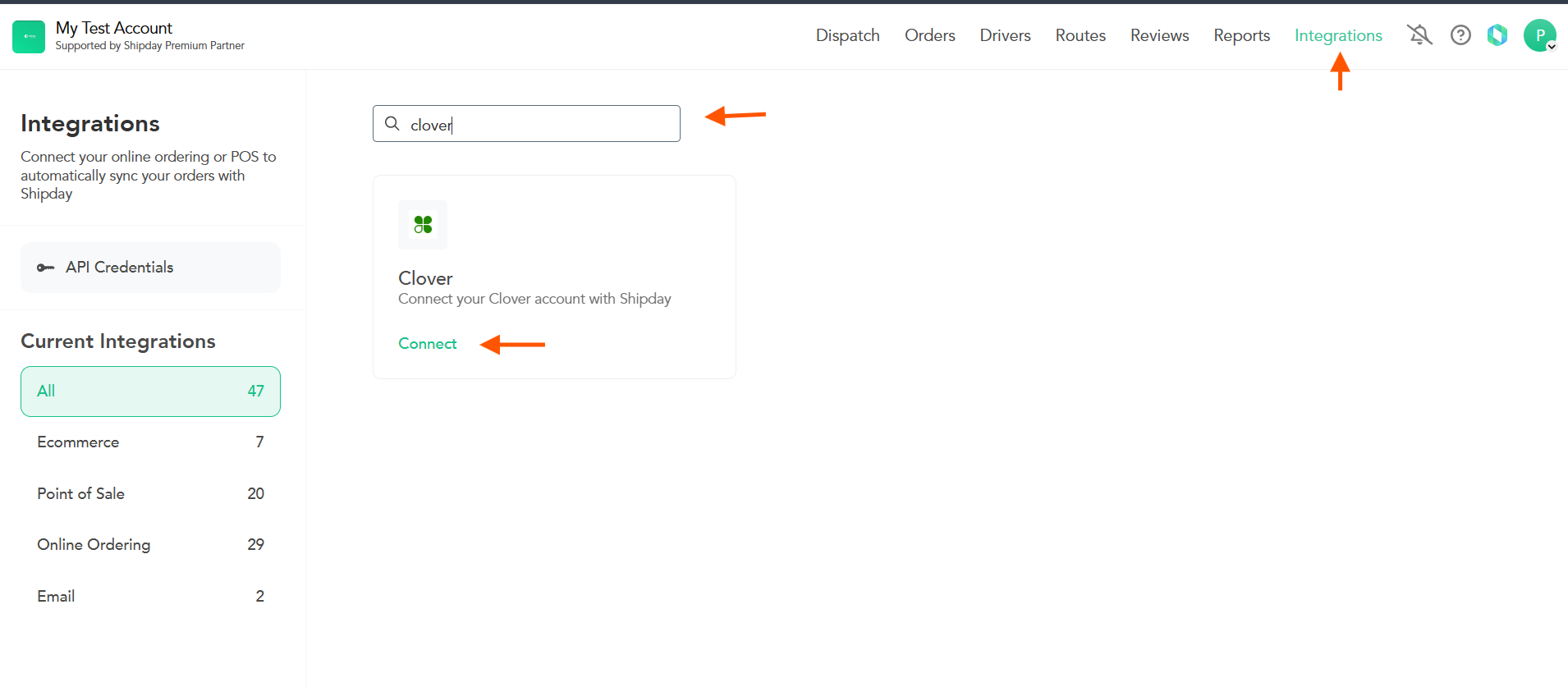
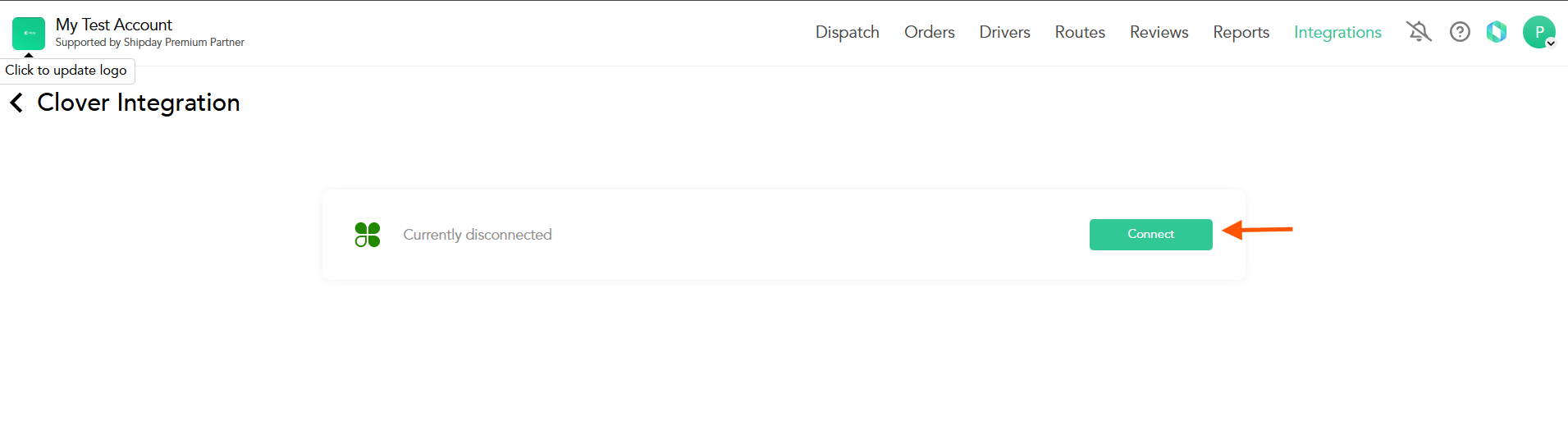
- On the Clover integration page, click the
Connectbutton.
-
When redirected to Clover, sign in to the correct account and accept the installation and authorization prompts for Shipday.
-
Return to Shipday and check that the account is connected. Place a test delivery order in Clover and confirm that it appears in Shipday.
If the connection does not complete, email support@shipday.com with the subject “Clover integration help”, your Shipday account email, store name and any error shown. Our team can guide you through an alternative connection method if needed.
Need help? Email support@shipday.com
Ready to get started?
Play around with it first, add your team, pay later.