
Integración de Order Tiger con Shipday
Configuración de la integración de API de Shipday
Esta sección está dirigida a dueños de marketplaces y de varias tiendas.
Si administras una sola tienda, nuestro equipo puede ayudarte con la configuración.
Antes de empezar, asegúrate de que:
- Tu cuenta de Shipday esté activa
- Tus repartidores y equipos ya estén configurados en el panel de Shipday
- Tengas lista tu clave de API de Shipday
Cuando todo esté listo, puedes completar la integración directamente desde tu Dashboard de Order Tiger.
Paso 1: Inicia sesión en el Dashboard de Order Tiger
Accede a tu cuenta con tus credenciales.

Paso 2: Cambia a la vista de ubicación o a la vista de empresa
Según cómo quieras configurar Shipday:
- Location View → Conecta Shipday a una sola tienda.
- Company View → Conecta Shipday a todas las ubicaciones a la vez.
Asegúrate de estar en la vista correcta antes de continuar.
Paso 3: Abre el panel de integración de Shipday
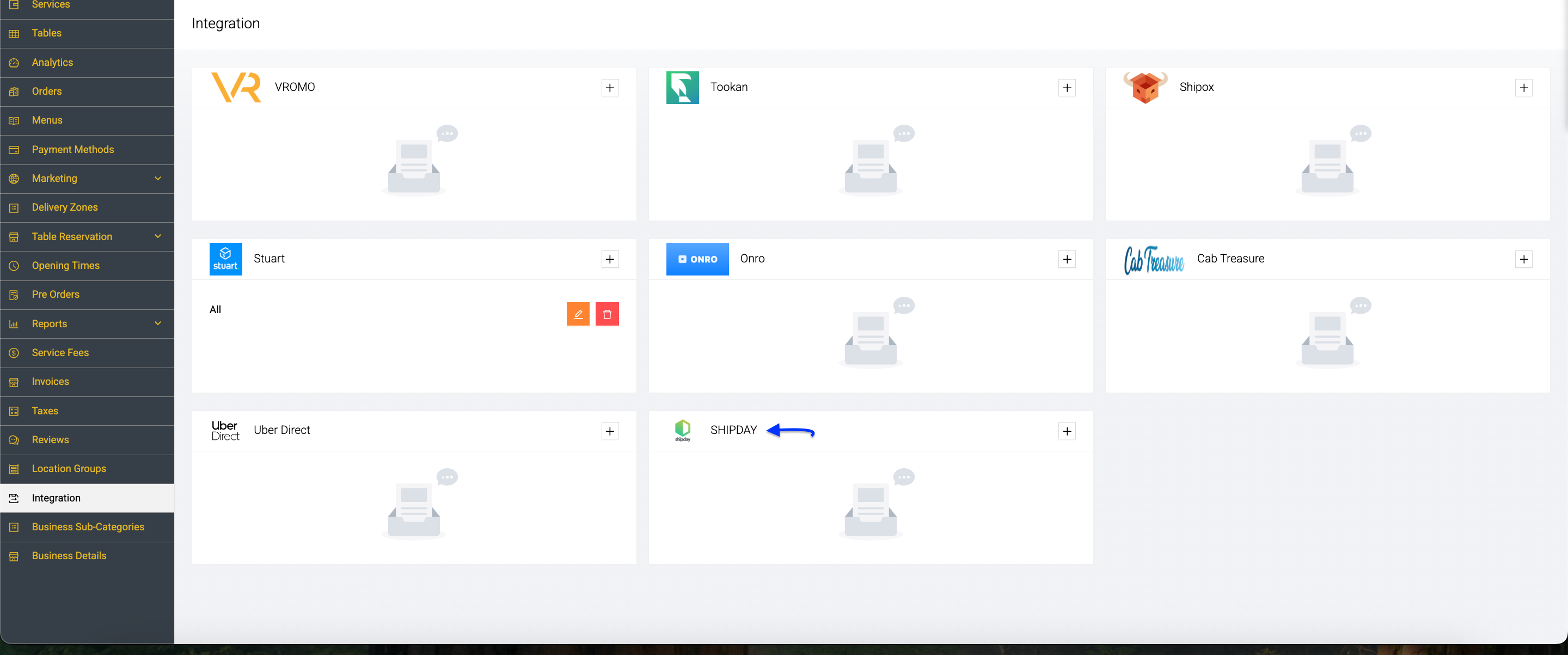
- Ve a Integration en el menú de la izquierda.
- Busca el recuadro de la integración de Shipday.
- Haz clic en el botón
+.
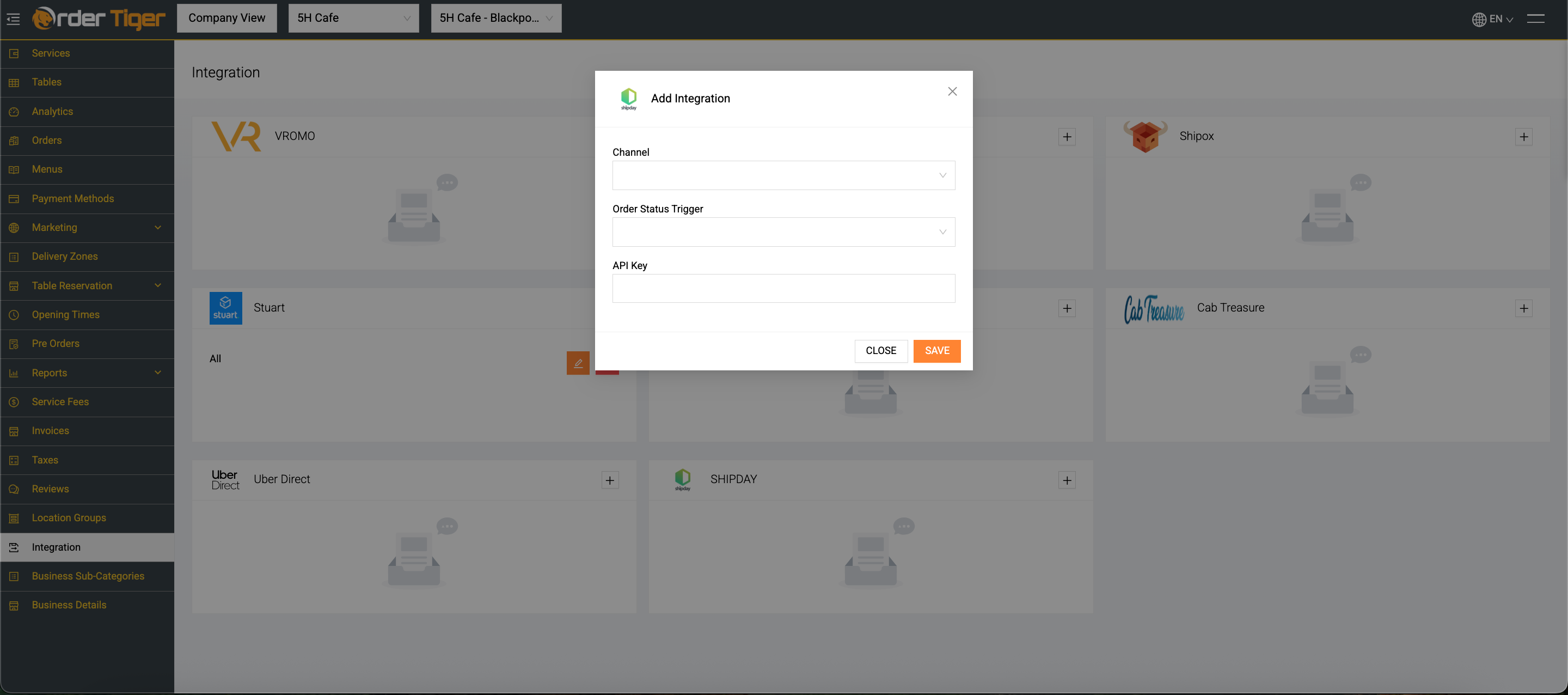
Aparecerá una ventana de configuración titulada Add Integration.
Paso 4: Completa los campos de la integración
En la ventana emergente de la integración de Shipday verás los siguientes campos:
Channel
Selecciona qué canales de pedidos deben enviar pedidos a Shipday:
- Web – Pedidos hechos en tu sitio web
- iOS – Pedidos hechos desde tu app de iOS
- Android – Pedidos hechos desde tu app de Android
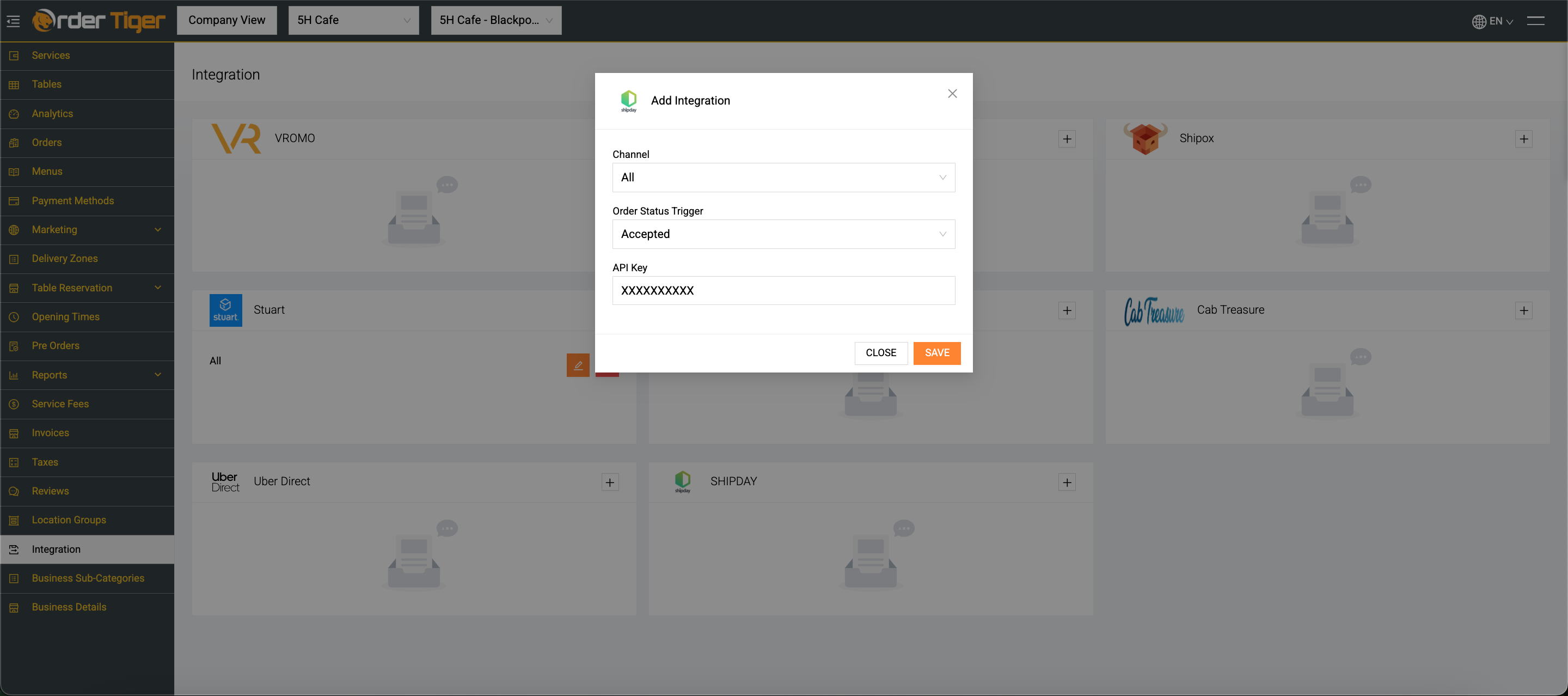
- All – Opción recomendada (envía automáticamente todos los pedidos en línea a Shipday)
Para la mayoría de los negocios, seleccionar All asegura que no se pierda ningún pedido.
Order Status Trigger
Elige cuándo se debe enviar automáticamente el pedido a Shipday.
Las opciones disponibles pueden incluir:
- Accepted (recomendado): el pedido se envía a Shipday inmediatamente después de aceptarlo.
- Ready to Pick Up: el pedido se envía cuando termina la preparación.
- Pending / On Its Way (si está disponible según tu configuración)
👉 Mejor práctica: selecciona Accepted para poder asignar repartidores con anticipación y optimizar los tiempos de entrega.
API Key
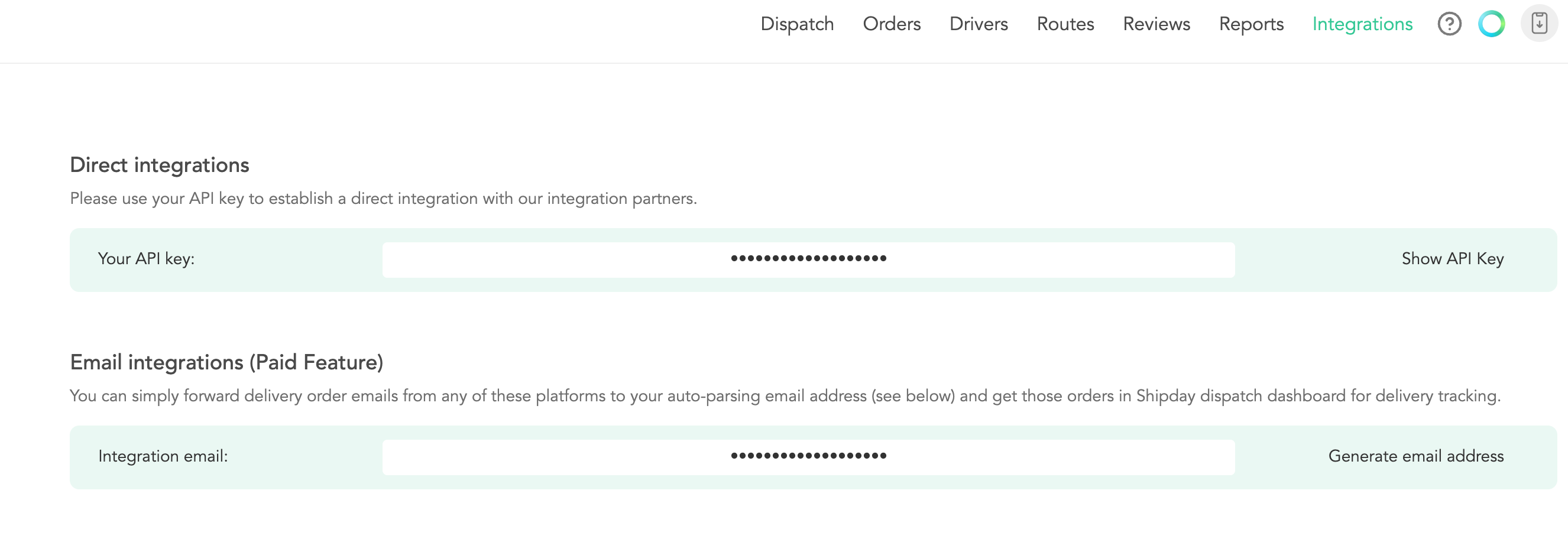
Ingresa tu clave de API de Shipday en este campo.
Para encontrar tu clave de API:
- Inicia sesión en tu panel de Shipday.
- Ve a la configuración de tu cuenta o a la sección de desarrolladores/API.
- Copia tu clave de API.
- Pégala en el campo API Key de Order Tiger.
Asegúrate de que no queden espacios adicionales al pegar la clave.
Paso 5: Guarda la integración
Cuando hayas completado todos los campos:
- Haz clic en Save.
- La integración se activará de inmediato.
A partir de ahora, tus pedidos se sincronizarán automáticamente de Order Tiger a Shipday según el disparador que elegiste.
¿Qué pasa después de la activación?
Una vez conectado:
- Los pedidos se envían automáticamente a Shipday.
- Puedes asignar repartidores (propios o de terceros).
- Los clientes reciben actualizaciones de seguimiento en tiempo real.
- Puedes monitorear el avance de la entrega directamente desde Shipday.
Tu proceso de entrega de última milla ahora está totalmente automatizado y optimizado.
¿Necesitas ayuda? Escribe a support@shipday.com
¿Listo para empezar?
Pruébalo primero, suma a tu equipo y paga después.